
Save your first thing
From the page you are on, or from inside the app. And what happens after.
There are two ways in. Both land in the same place.
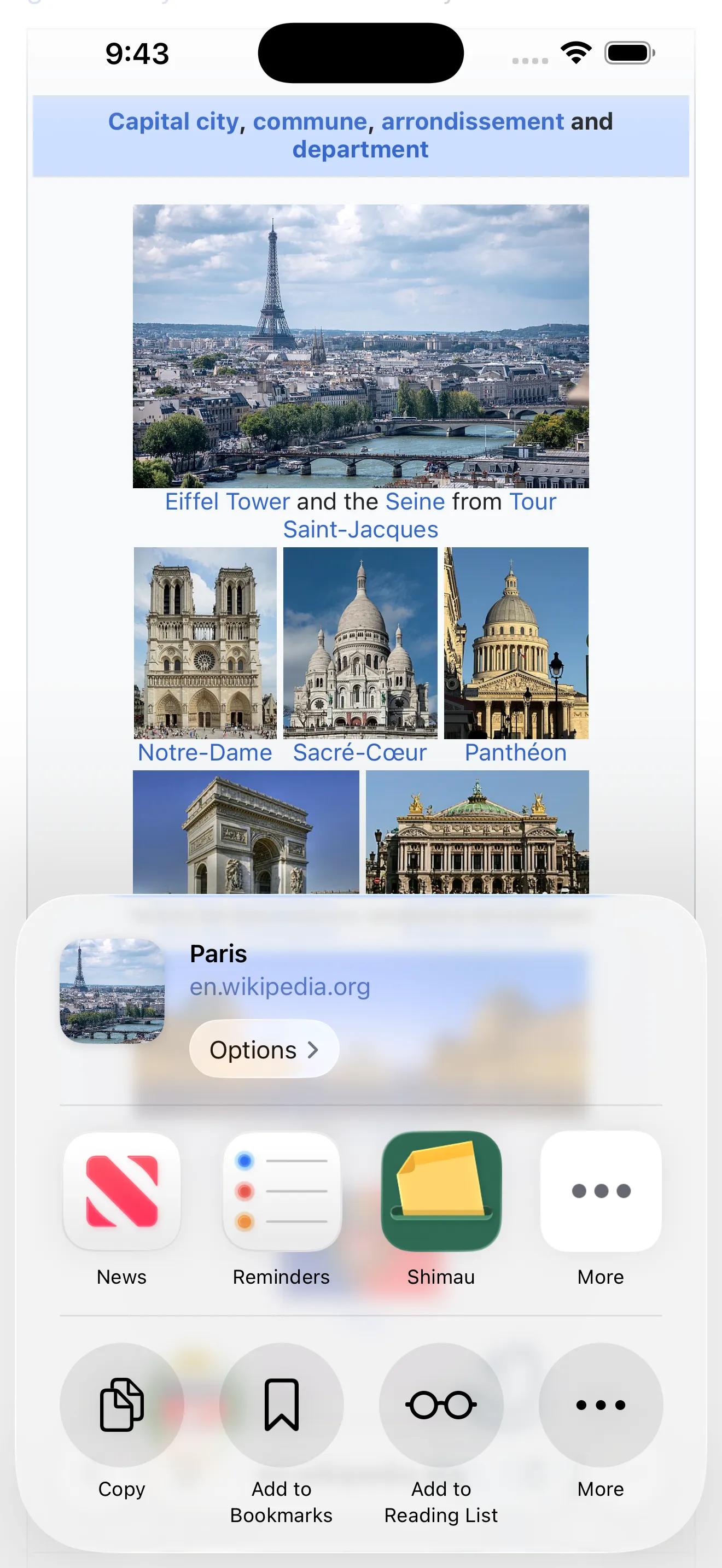
Save what you are looking at
- Tap the share button.
- Choose Shimau.
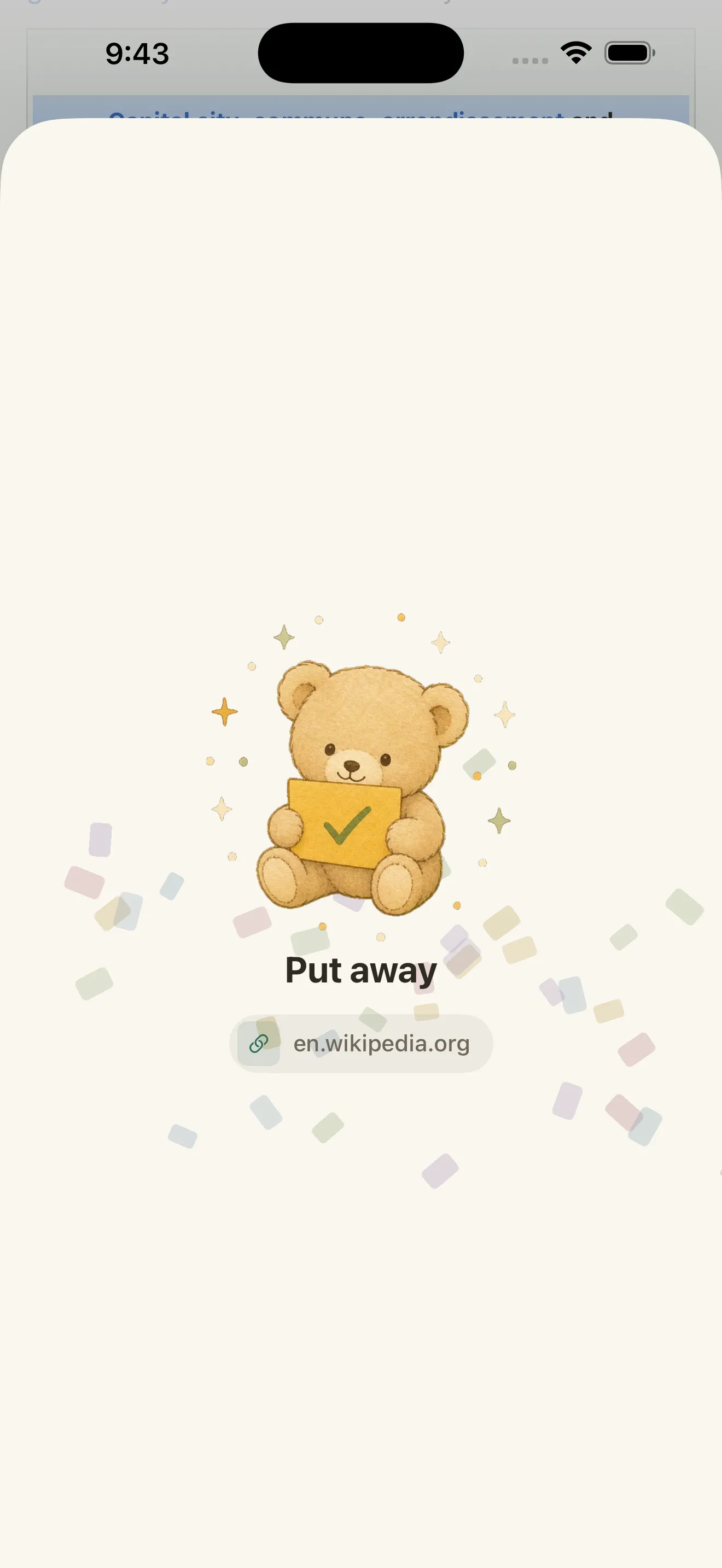
When the confirmation card appears, you are done. You never switch to the app.
Save from inside the app
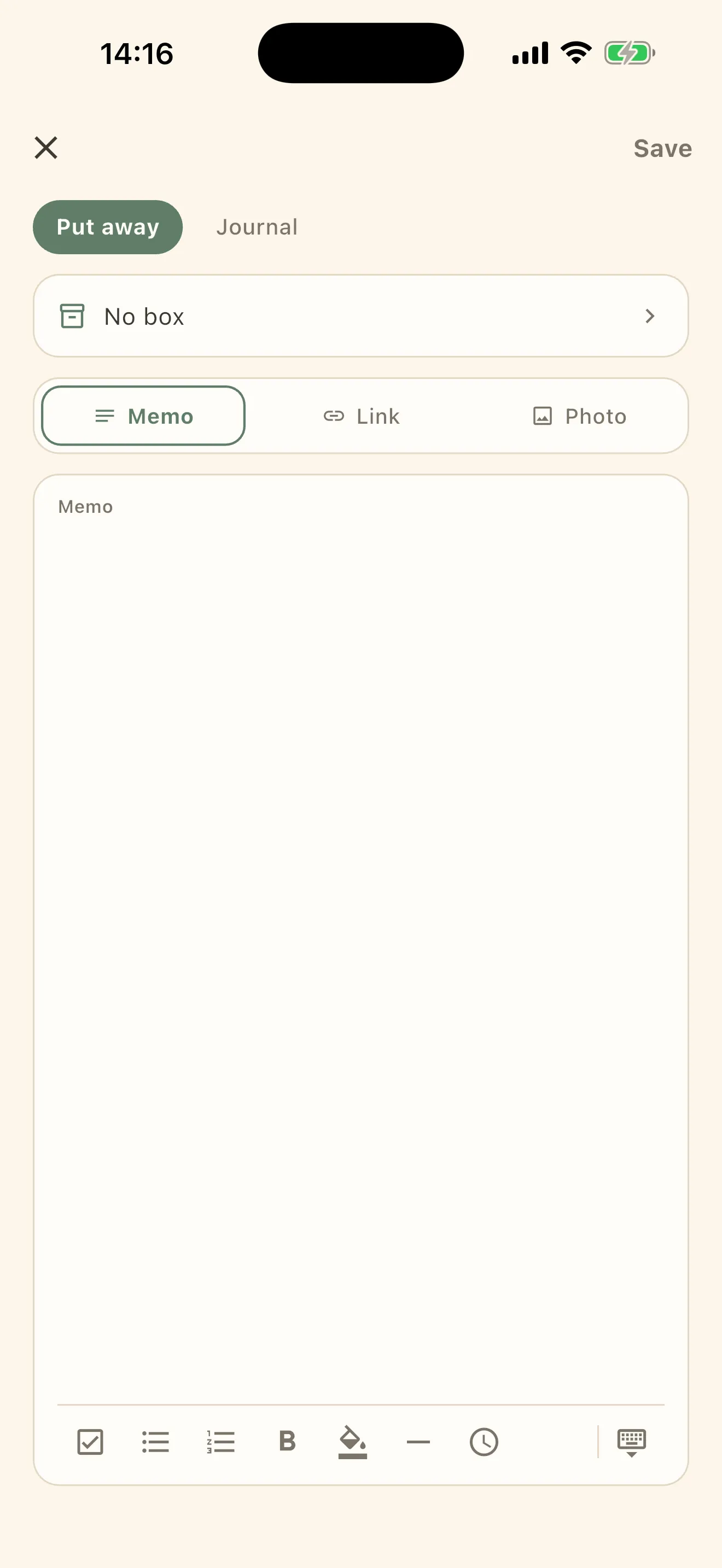
Tap + at the bottom center and this screen opens.
- The Put away / Journal switch at the top chooses between putting something away and writing today’s journal entry.
- Pick a kind from Memo / Link / Photo, then write or paste into the field below.
- You can leave the destination on No box. Only tap it when you want to decide.
- Save at the top right puts it away.
After it is saved
While AI is organizing… is showing, the contents are being read and an AI Summary and tags are added. You do not have to wait for this. Closing the app is fine.
Once it appears under Recently saved on Home, it can already be found.